 ChildCare
Install & Connect
This guide walks you through installing ChildCare on the parent's phone and on your child's phone, connecting the two with a pairing code or QR, and granting the permissions that make monitoring work. Nothing here needs root.
Before you start Have these ready and the whole setup takes about ten minutes.
One for the parent (parent app) and one for the child (child app). Both must run Android 8.0 (Oreo) or newer.
Wi-Fi or mobile data on both phones. Setup needs to reach our servers to link the two devices.
You'll create one with an email address or phone number, or use Google Sign-In.
You grant permissions on the child's device once, during setup. Keep the phone nearby.
The two phones talk to each other through our encrypted backend, so they do not need to be on the same Wi-Fi or even in the same city. Once paired, the child's phone reports activity and the parent app shows it live.
Step-by-step setup Install on both phones, then link them.
Install ChildCare on the parent's phone first. Tap the button below, or open the Google Play testing link we sent you and tap Become a tester, then install the app from the Play Store.
- Open the Play link on the parent's phone.
- Tap Become a tester, then Download it on Google Play.
- Install and open ChildCare.
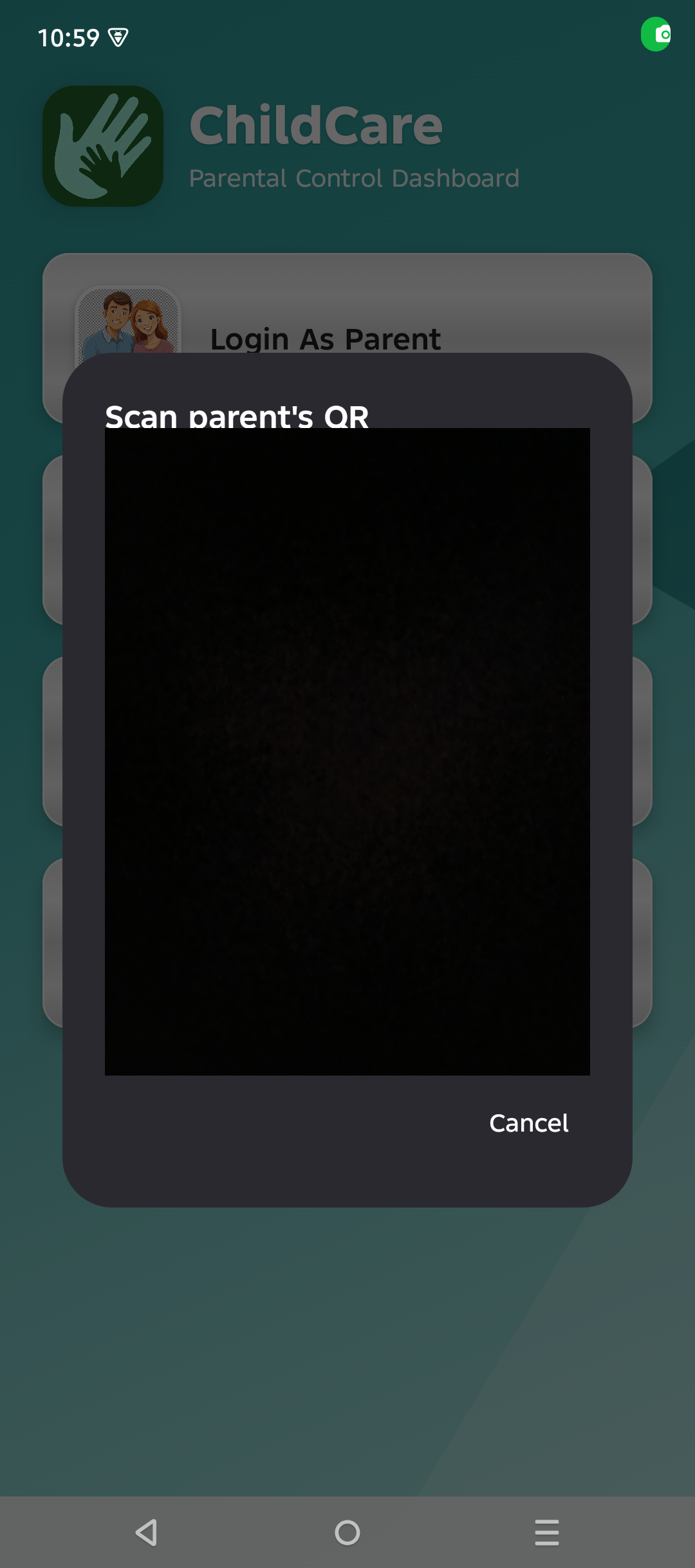
On the parent's phone, choose Login As Parent (Father or Mother), then Create Account. You can sign up with an email address or a phone number, or use Google Sign-In.
- Tap Login As Parent.
- Tap Create Account and fill in your name, email/phone and a password.
- Verify the email or phone number if prompted, then sign in.
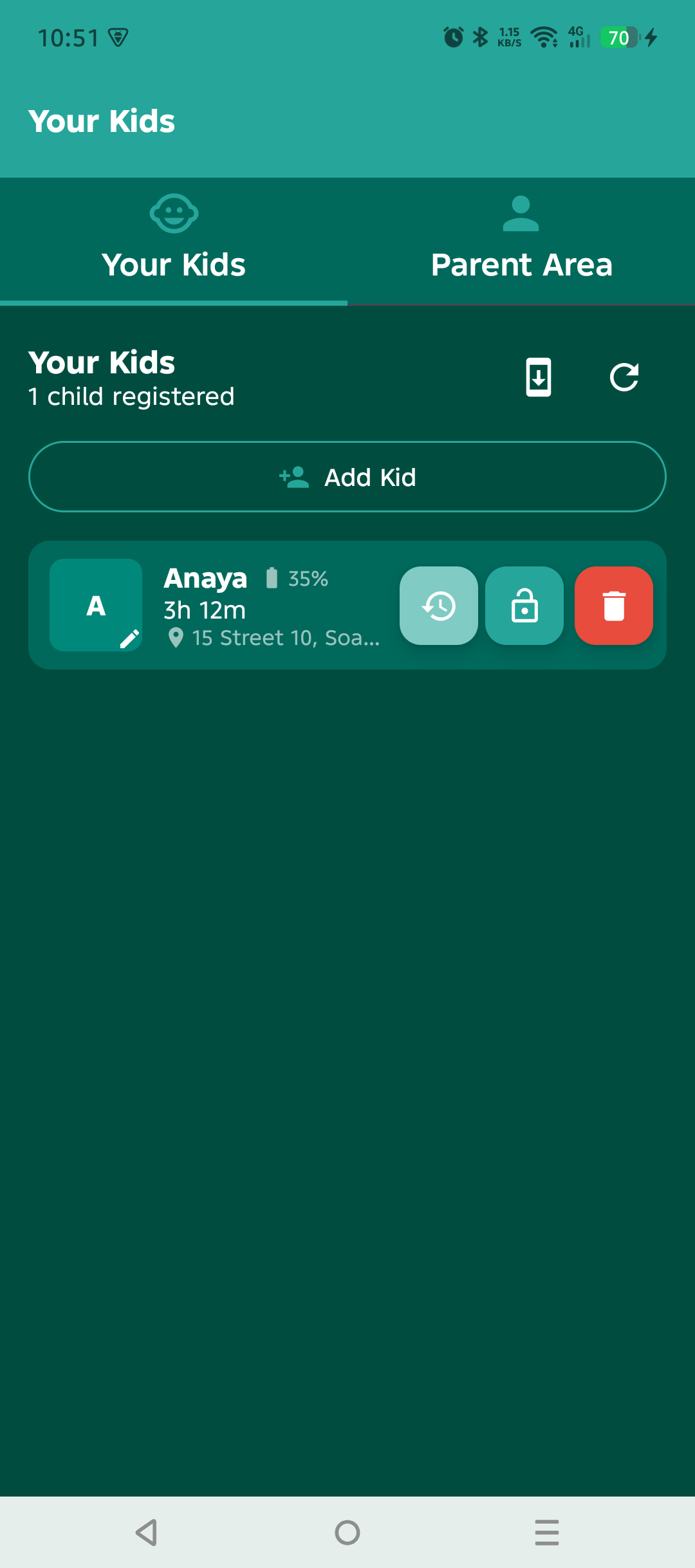
On the parent's home screen (Your Kids), tap Add Kid. ChildCare shows a QR code and a short pairing code. This is the invite you'll use on the child's phone.
- Tap Add Kid (or the QR icon on the dashboard).
- Leave this screen open — you'll scan the QR from the child's phone, or type the code.
- You can tap Generate New Code if it expires.
Your Pairing Code
Now pick up the child's phone. Install ChildCare on it the same way. On the welcome screen choose Connect to Parent and scan the QR your parent is showing — or tap Enter Pairing Code and type the code.
- Install and open ChildCare on the child's phone.
- Tap Connect to Parent.
- Point the camera at the parent's QR, or enter the 6-digit code.
- Add the child's name and age so the parent recognises the device.
ChildCare immediately opens a guided Permission Setup screen. Tap Allow / Enable on each system dialog and each settings page it opens until every item shows Granted. The app cannot monitor or protect the child without these.
- Tap Allow on the on-screen prompts.
- When a Settings page opens, switch the toggle on and press Back — the wizard continues automatically.
- Repeat until every row shows a green Granted.
Live map and safe zones.
Keeps location updating when the app is closed.
Alerts and the running-service notice.
Which apps are used and for how long.
Reads notifications for web/app monitoring.
App blocking, App Locker and screen-time enforcement.
Uninstall protection and remote lock.
Stops the phone from killing the service.
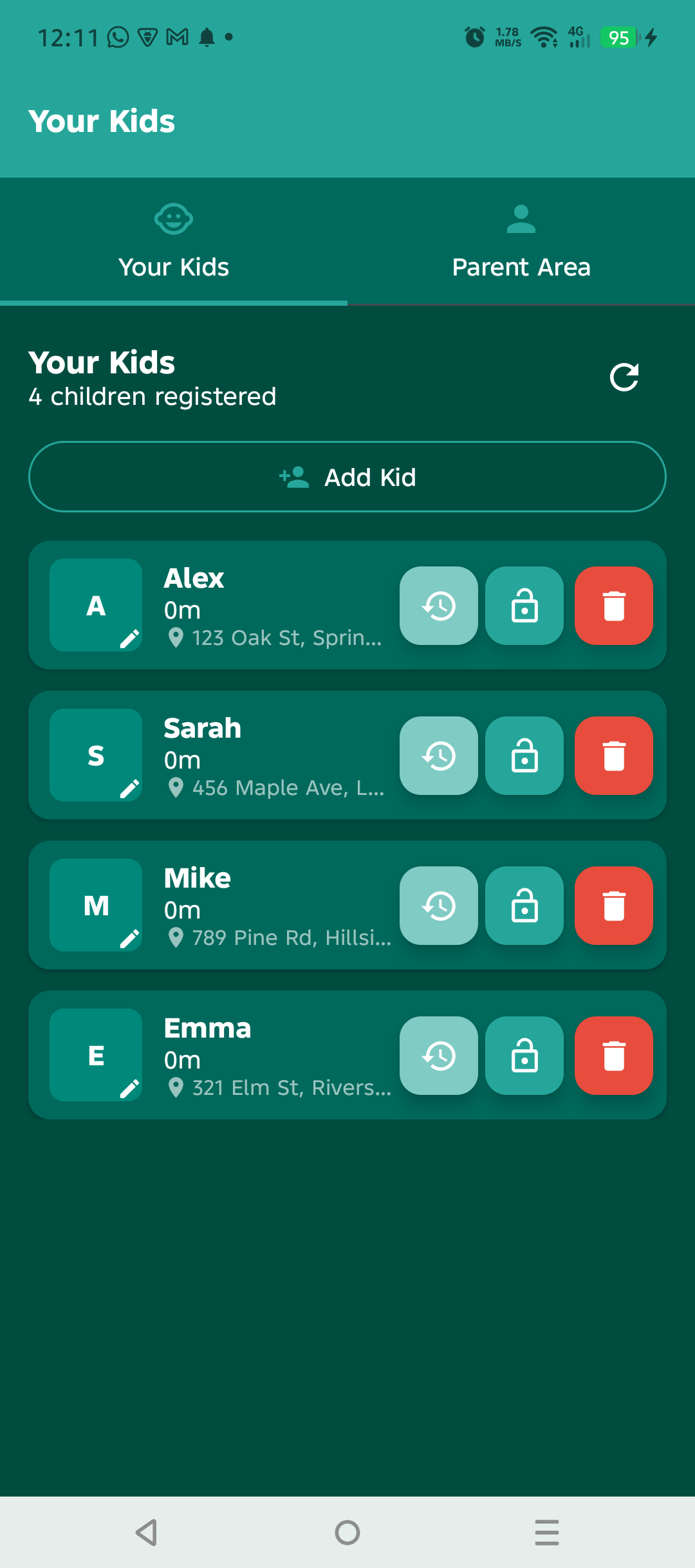
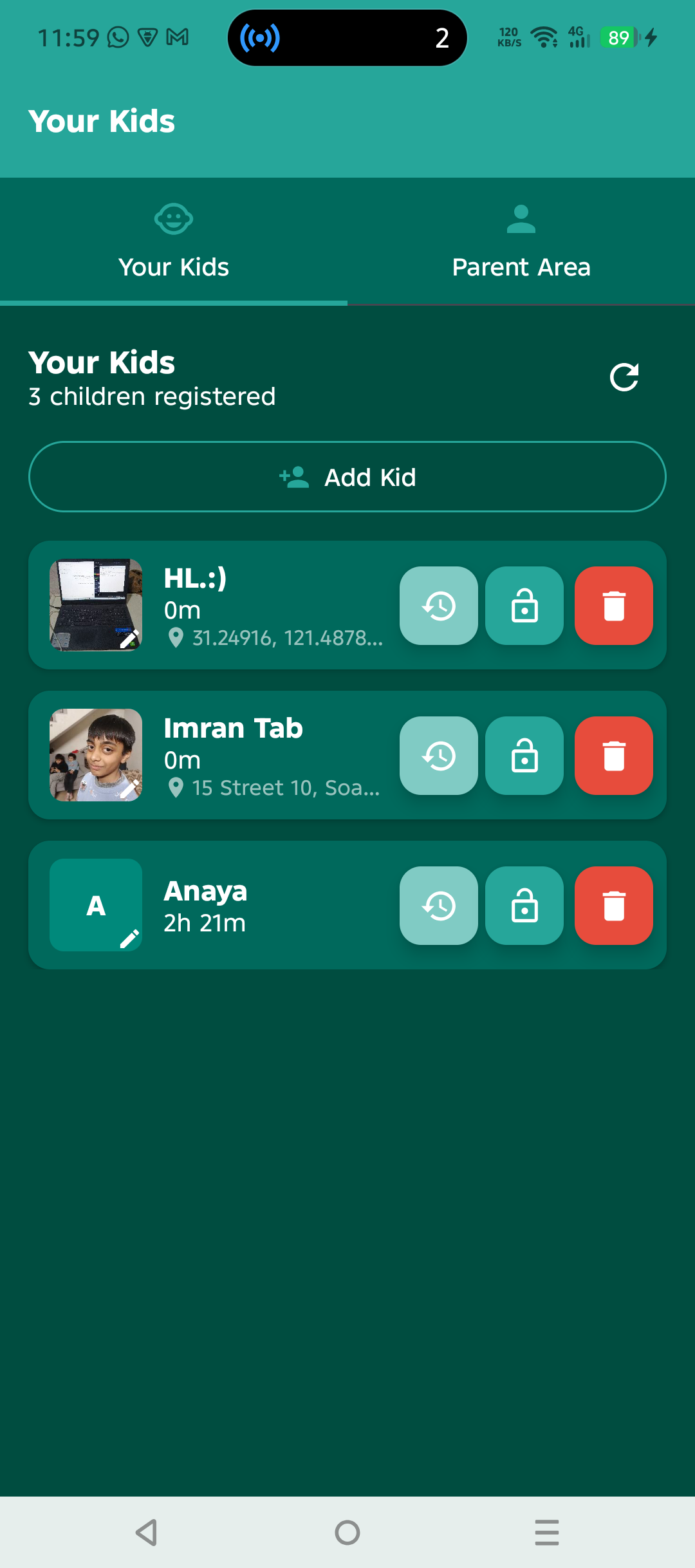
Back on the parent's phone, open Your Kids. Your child's card should show a recent status, battery level and a location. Tap the card to open the full control panel.
- Confirm the child shows as online with a recent battery and location.
- Open the child's card and set screen time, rules, blocked apps and safe zones.
- Send a test: tap Ring — the child's phone should ring within a few seconds.
Permissions explained What each one is for, and why ChildCare needs it.
Android asks for sensitive permissions explicitly. Every permission below is granted on the child's phone, is used only to provide the feature named, and never leaves the app's private data. You can review everything under the child phone's Settings → Apps → ChildCare → Permissions.
Real-time location, arrival/leave alerts and geofences. Without background access the map freezes when the app is closed.
Android only reveals which apps were opened and for how long through Usage Access. Powers app-usage screens and screen-time budgets.
Used to detect when a blocked or time-limited app opens and to return to the child's home screen. Also powers App Locker.
Reads notification titles so web and app content can be summarised. It does not post anything on the child's behalf.
Makes the app harder to uninstall without the parent PIN, and enables remote lock. You can disable it on the child's phone at any time.
Reads incoming SMS so you can see messages the child receives. Optional — the app works without it.
Shows incoming, outgoing and missed calls with duration. Optional.
Lets the lock / kiosk screens appear above whatever is open when a rule is enforced.
Not a "permission" in the usual sense, but the single most important setting — most phones must be told to let ChildCare run in the background.
Only used when the parent starts a live screen mirror or captures a screenshot. Never records in the background.
Set it up on your phone brand Most "the app stopped working" problems are one of these three settings: autostart, battery, and locking the app in recents. Find your brand below.
These steps are done on the child's phone (and, if you like, on the parent's phone too). Menu names vary slightly by model and software version — if you don't see the exact wording, search your phone's settings for the bolded term.
Xiaomi · Redmi · POCO
- Allow installs
- Settings → Privacy protection → Special permissions → Install unknown apps → allow your browser/Files.
- Autostart
- Open the Security app → Permissions → Autostart → enable ChildCare. Or Settings → Apps → Permissions → Autostart.
- Battery
- Settings → Apps → Manage apps → ChildCare → Battery saver → No restrictions.
- Lock in recents
- Open recents, long-press the ChildCare card, tap the padlock.
- Also do
- Turn off "Remove permissions and revoke access" (Settings → Privacy protection → Special permissions) so MIUI can't strip permissions automatically.
Samsung
- Allow installs
- Settings → Apps → Special access → Install unknown apps.
- Battery
- Settings → Battery → Background usage limits → Never sleeping apps → add ChildCare. Also turn off Put unused apps to sleep.
- Autostart
- One UI has no strict autostart, but set ChildCare to Unrestricted: Settings → Apps → ChildCare → Battery → Unrestricted.
- Lock in recents
- Open recents, tap the ChildCare icon, choose Keep open.
- Also do
- Device care → Battery → make sure ChildCare isn't listed under Sleeping apps.
Infinix · Tecno · itel
- Allow installs
- Settings → Apps → Special app access → Install unknown apps.
- Autostart
- Settings → Apps → Autostart → enable ChildCare. Sometimes under the Phone Master / Power manager → Startup manager.
- Battery
- Settings → Battery → turn off power saving for ChildCare, and add it to Protected apps / whitelist so "App freeze / cleanup" skips it.
- Lock in recents
- Open recents, long-press ChildCare, tap the lock icon.
- Also do
- Disable "Auto-restart when crash" toggling off — actually leave it ON so the service restarts itself.
Oppo · Realme · OnePlus
- Allow installs
- Settings → Apps → Special app access → Install unknown apps.
- Autostart
- Settings → Battery → App battery management (or App launch) → ChildCare → allow Auto-launch and Background activity.
- Battery
- Same screen → turn off Optimise / choose Don't optimise.
- Deep sleep
- Turn off Sleep standby optimisation in Battery settings.
- Lock in recents
- Recents → menu → Lock, or long-press the ChildCare card.
vivo · iQOO
- Allow installs
- Settings → More settings → Install unknown apps.
- Autostart
- i Manager → App manager → Autostart manager → enable ChildCare. Or Settings → Battery → Background power consumption management.
- Battery
- Settings → Battery → Background power consumption → ChildCare → Allow high background power (don't optimise).
- Lock in recents
- Recents → tap the ChildCare card's lock.
Huawei · Honor
- Allow installs
- Settings → Security → More settings → Install apps from external sources.
- Autostart
- Settings → Battery → App launch → ChildCare → switch to Manage manually and turn on Auto-launch, Secondary launch and Run in background.
- Battery
- Battery → More battery settings → keep "Stay connected while asleep" on.
- Lock in recents
- Recents → swipe down on the ChildCare card → lock icon.
Google Pixel · Motorola · Nokia · Nothing · Sony
- Allow installs
- Settings → Apps → Special app access → Install unknown apps.
- Battery
- Settings → Battery → Battery optimisation → All apps → ChildCare → Don't optimise.
- Autostart
- Not usually required on stock Android.
- Also do
- Settings → Apps → ChildCare → turn off "Pause app activity if unused" and "Remove permissions if app is unused".
Any other brand / custom ROM
- The three rules
- 1) Allow installs from your source. 2) Set ChildCare to unrestricted / not optimised battery. 3) Enable autostart and lock the app in the recent-apps list.
- Find the menu
- Search Settings for "autostart", "battery optimisation", "app launch" or "protected apps".
- Still stuck?
- See Troubleshooting or contact support from the app's Help screen.
Install methods Two ways to get ChildCare onto a phone.
Method 1 — Google Play (recommended)
- Steps
- Open your invite link → tap Become a tester → Download it on Google Play → install. Repeat on the second phone with the same link.
- Gets updates
- Yes — new versions arrive automatically through Play.
- Best for
- Almost everyone. This is the version we test and support.
Method 2 — Direct APK
- Steps
- Download the APK on the phone, open it, and if Android blocks it, tap Settings → Allow from this source for the browser or Files app, then tap Install.
- Enable unknown sources
- Android 8+: the toggle appears inline when you open the APK. On some brands it lives in Settings → Apps → Special app access → Install unknown apps.
- Updates
- The app can update itself in place when a new version is released. You may need to allow "Install unknown apps" once for ChildCare.
Troubleshooting The most common setup problems and how to fix them.
Ready to connect?
Install on both phones and follow the six steps above. Most families are fully set up in about ten minutes.
Get the app on Google PlayAndroid 8.0+ · No root required · 7-day free trial